

Append Jira Checklist Items with User Mentions Use Case
Appending a checklist item with a user mention via automation is useful for creating standardized, repeatable workflows. For example, whenever a Jira item is transitioned to “In Review,” automation can add a checklist item like “Code review – @xxx” to ensure the designated reviewer is always notified. When a work item moves to “Ready for Release,” automation can append “Update user documentation – @xxx” to notify the technical writer that the feature is ready to be documented.
Combining automatically added items that mention users with other features such as checklist templates and checklist validation allows you to bake your best practices into your workflow, thereby ensuring efficiency and compliance.
Jira Checklist Automation Rule: Append Checklist Items with User Mention
This rule adds a new checklist item – complete with item assignee – to the existing checklist. Note that if you are using Checklists for Jira Enterprise, this rule cannot add/update items to Global Checklists.
Get the User Account ID
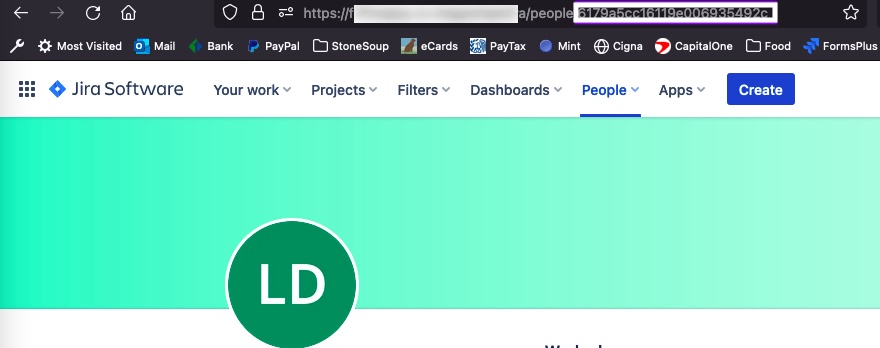
To ensure GDPR compliance, Atlassian uses the Account ID rather than the user’s name, so the first step is to copy the Account ID of the user you want to mention to the clipboard:
1. Open the user’s profile page.
2. Copy the Atlassian Account ID (the text between “people” and “?cloud”) from the browser address.
Build the Jira Automation Rule
1. Ensure the Sync checklists to Custom Fields global setting is enabled, and that the Jira space has the Checklist Text field.
2. Navigate to Space settings > Automation (or Jira settings > System > Automation rules).
3. Click Create rule and select Create from scratch.
4. Select the Work item transitioned trigger and the appropriate from and to statuses. Click Next.
5. Click New action and select Edit work item.
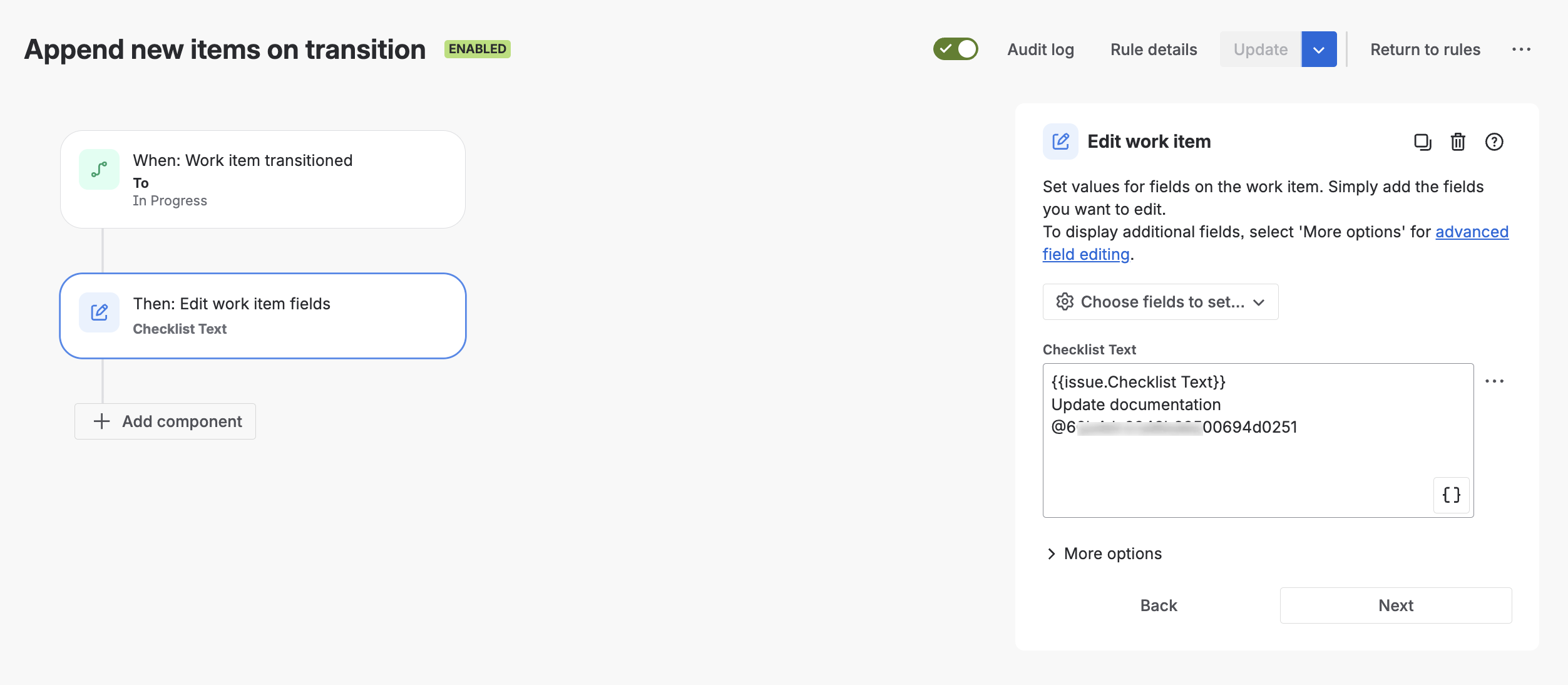
6. Select the Checklist Text field from the dropdown and provide the details as follows:
- Type {{issue.Checklist Text}} in order to insert the existing checklist
- Add the new checklist items that you want to append followed by @ and the user’s ID.
7. Click Next.
8. Name the rule and click Turn it on.


