Tracking hours in Jira shows where effort goes. It does not, on its own, tell you what that effort was worth.
Salaries rise, contractor agreements renew, client rate cards get renegotiated. Until now, updating someone's hourly cost or billing rate risked rewriting the past: change a rate in July and every hour that person had ever logged was suddenly worth the new number, including the work you invoiced in March at the old one. Last quarter's margin moved because of a decision you made this quarter.
With Time-Range Costs and Rates in Clockwork Pro for Jira, you can assign hourly costs and billing rates to individual users for specific time ranges. Set the new figure with the date it takes effect, and your historical records, closed quarters and past invoices stay exactly as they were.
Two Numbers, One Margin
The whole model rests on a distinction worth keeping straight:
- Cost is the hourly amount you pay a user. It is your internal expense.
- Rate is the hourly amount you charge the customer. It is your revenue.
The gap between the two, across the hours actually logged, is your margin. Each user can now hold a series of cost and rate periods, each with its own effective start date, and Clockwork values every worklog using the figures that applied on the day the work was done. A rate change applies from the date you say it applies, and not a day earlier.
Why Effective Dates Matter
In real project delivery, financial parameters are never static:
- Rate cards evolve. Annual increases, renegotiated contracts and role promotions all take effect on a specific date.
- Labour costs shift. Salary adjustments and contractor revisions happen throughout the fiscal year, not neatly at year end.
- Historical integrity is not negotiable. Audits, client reconciliations and R&D capitalisation all require that past work reflects the cost and rate that were in effect when the work was delivered.
The most expensive reporting bug is the one that changes an answer you already gave someone. If a retrospective rate change quietly restates a closed period, the profitability figure you took to the last board meeting is not the one the system shows today. Effective dating closes that gap.
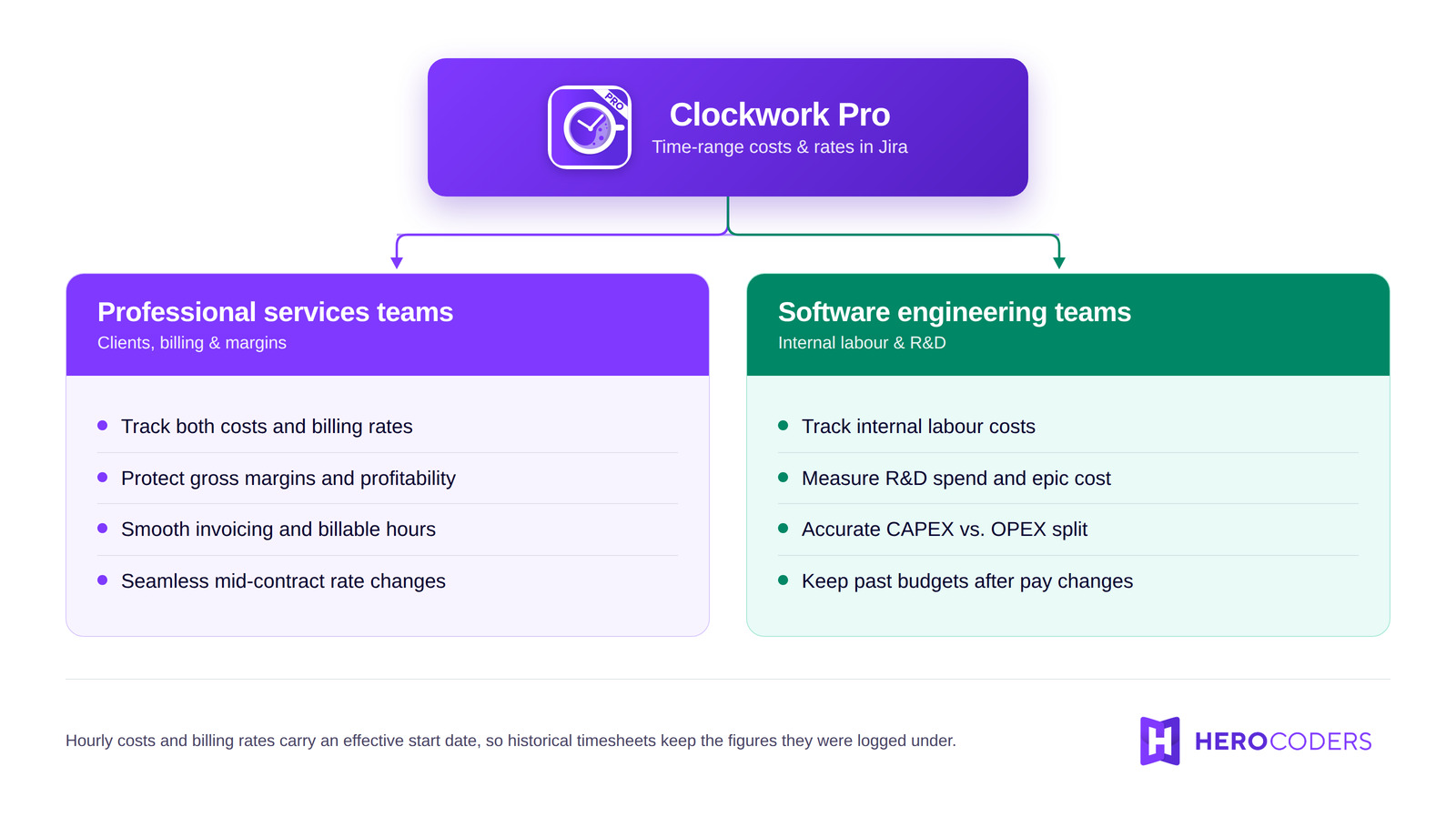
Professional Services and Consultancies: Protecting the Spread
For agencies, consultancies and managed-services teams, profitability lives in the difference between what you pay your delivery team and what you charge the client.
- See margin as it burns. Cost and revenue sit against the same hours, on the same timesheet, rather than in a spreadsheet someone reconciles at month end.
- Handle the annual rate card without drama. A client agrees five percent from Q1? Add the new period from that date. Last year's billings do not move.
- Invoice from what was actually agreed. Export a timesheet combining the hours logged with the rate that was live during that billing cycle.
- Promote people mid-project. A junior consultant stepping up to a senior role gets the new rate from the promotion date forward; the earlier work keeps its original figures.
Software and Product Teams: Internal Cost, Not Client Billing
For internal engineering, IT and product organisations, a client billing rate is often beside the point. What matters is labour cost allocation, project budget tracking and the CAPEX versus OPEX split.
- Cost a feature, not just a sprint. Connect developer hours to salary-based hourly costs and see what building a feature or running a maintenance sprint actually cost.
- Run the salary review without distorting the budget. Set new labour costs from their effective date; historical sprint costs and completed milestone budgets stay put.
- Make the CAPEX/OPEX split defensible. Group worklogs by worklog attribute or Jira custom field — capitalisable R&D against operational maintenance, say — and apply the labour costs that were genuinely in force at the time.
- Leave the workflow alone. Engineers keep logging time on the Jira work items they already live in; finance gets the cost data out the other end.
How It Works in Clockwork Pro
Cost and rate tracking is a Clockwork Pro feature, gated behind one permission rather than scattered across Jira's permission schemes.
- Pick your currency. Go to Jira settings > Apps > Clockwork configuration > General > Budgeting and select the currency you report in. This is a prerequisite for cost and rate tracking, so it comes first.
- Grant Budgeting Access. Only users granted the Clockwork Budgeting Access global permission can see costs, rates and revenue reports. Finance and delivery leadership usually need it; the people logging the time usually do not.
- Set the opening figures. In Apps > Clockwork > Teams and Users, choose Add user config, select a person, and enter their Hourly Cost and Hourly Rate.
- Add a period when something changes. On that user, click Add period, choose the Effective Start Date of the new cost and rate, and save. Everything logged from that date forward uses the new figures; everything before it keeps the old ones.
Where the Numbers Come Out
Dated rates are only useful if the money reaches a report. It reaches two places.
The timesheet. Open the Show as dropdown and choose Cost or Rate to see the financial side of the same hours, broken down by project, epic, user or worklog attribute. Which hours count as billable is up to you — mark them with a Jira custom field on the work item, or with a Clockwork worklog attribute on the worklog itself.
The export. Clockwork Pro exports three ways: worklogs, timesheets, or totals. Worklog export is available in Clockwork Lite as well; timesheets and totals are Pro. Worklog exports also carry approval status, approver, approval date and period, so the file you hand to finance says not just what was logged but what was signed off, by whom, and when.
See Clockwork Pro in Action
This full product demo walks through time tracking, timesheets, reporting, billing periods and approvals in Jira. Cost and rate configuration lives in Clockwork's settings and is not part of the walkthrough, but everything the money lands in — the timesheet, the reports, the billing periods — is.
Take Control of Your Jira Financial Tracking
Connecting time tracking to accurate financial data should not require an enterprise suite or a month-end spreadsheet reconciliation.
Time-Range Costs and Rates are available now to every Clockwork Pro user. If you already track costs and rates, your existing figures become the first period — add the next one the moment you know the date it starts.
The Cost & Rate Tracking documentation has the full setup, and Billing & Invoicing covers the path from a logged hour to a sent invoice.
Frequently Asked Questions
Can you set different hourly rates for different time periods in Jira?
Yes, with Clockwork Pro. Each user can hold multiple cost and rate periods, each with its own effective start date. Clockwork Pro values every worklog using the cost and rate that applied on the date the work was logged, so changing someone's rate does not restate hours logged before the change.
What is the difference between cost and rate in Clockwork Pro?
Cost is the hourly amount you pay a employee — your internal expense. Rate is the hourly amount you bill the customer — your revenue. Tracking both against the same worklogs is what turns a timesheet into a margin.
Who can see costs and rates in Clockwork Pro?
Only users granted the Clockwork Budgeting Access global permission can access Clockwork costs, rates and revenue reports. Everyone else can log and view time without seeing any financial data.
Can Clockwork Pro track internal cost without a client billing rate?
Yes. Cost and rate are set independently per user, so an internal engineering or IT team can record hourly costs alone and leave billing rates unset. Worklogs can then be grouped by worklog attribute or Jira custom field to separate capitalisable development from operational work.
Is cost and rate tracking available in Clockwork Lite?
No. Cost and rate tracking, billing periods, timesheet approvals, saved reports and dashboard gadgets are all Clockwork Pro features. Clockwork Lite covers automatic and manual timers — configured globally rather than per project — along with basic worklog entry and basic timesheet filtering.